
Getting started
Connect your website and social accounts
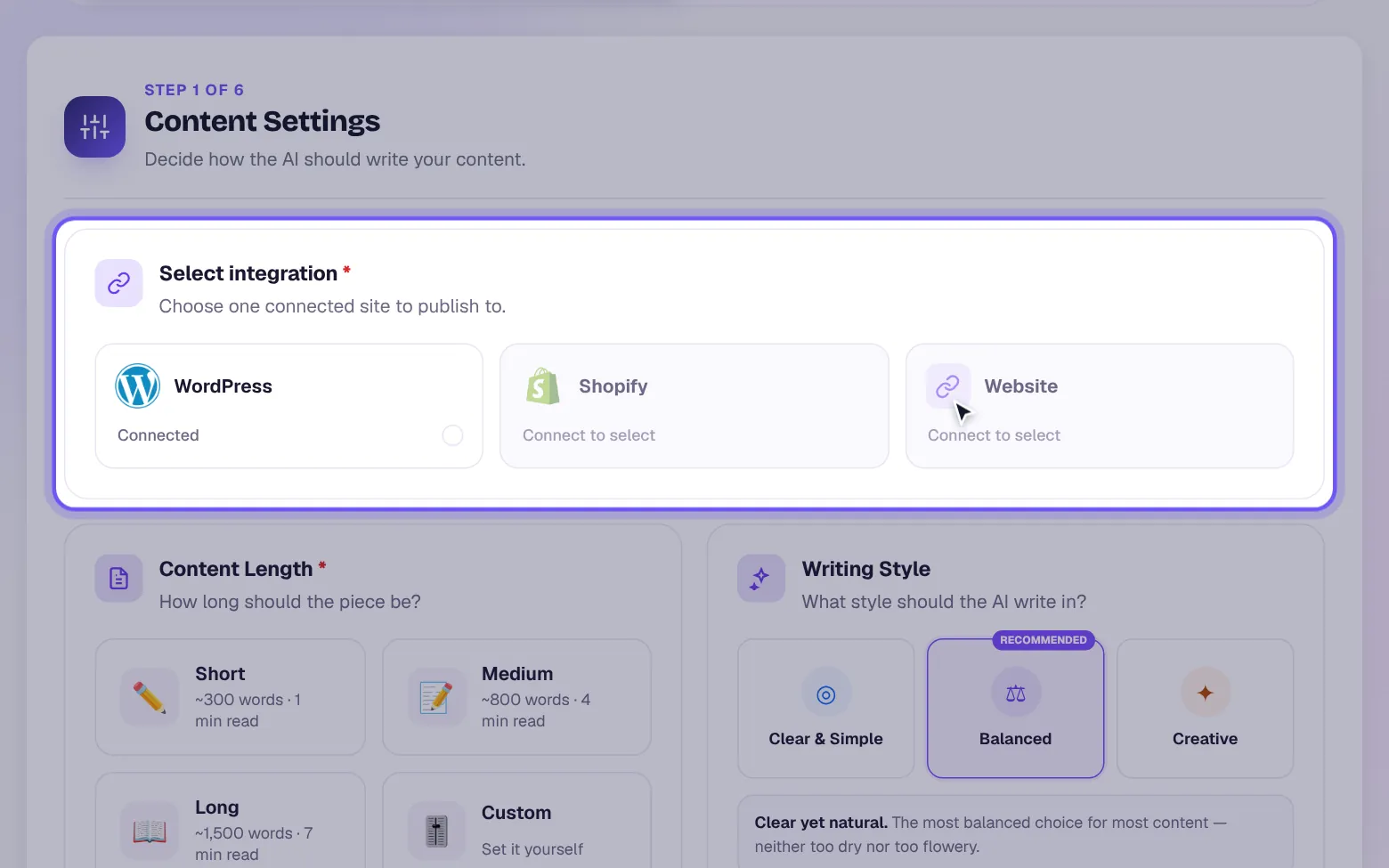
Connect WordPress in one click, Shopify or your own website, and up to eight social networks, so Publisha can publish for you.
In short
Publisha writes your posts, but it publishes them to your own channels: your blog and your social accounts. Connecting them is the first thing to do, and you only do it once.
Every connection uses the platform’s own approval screen. Publisha never sees your passwords, and you can disconnect at any time.
-
Open System → Integrations
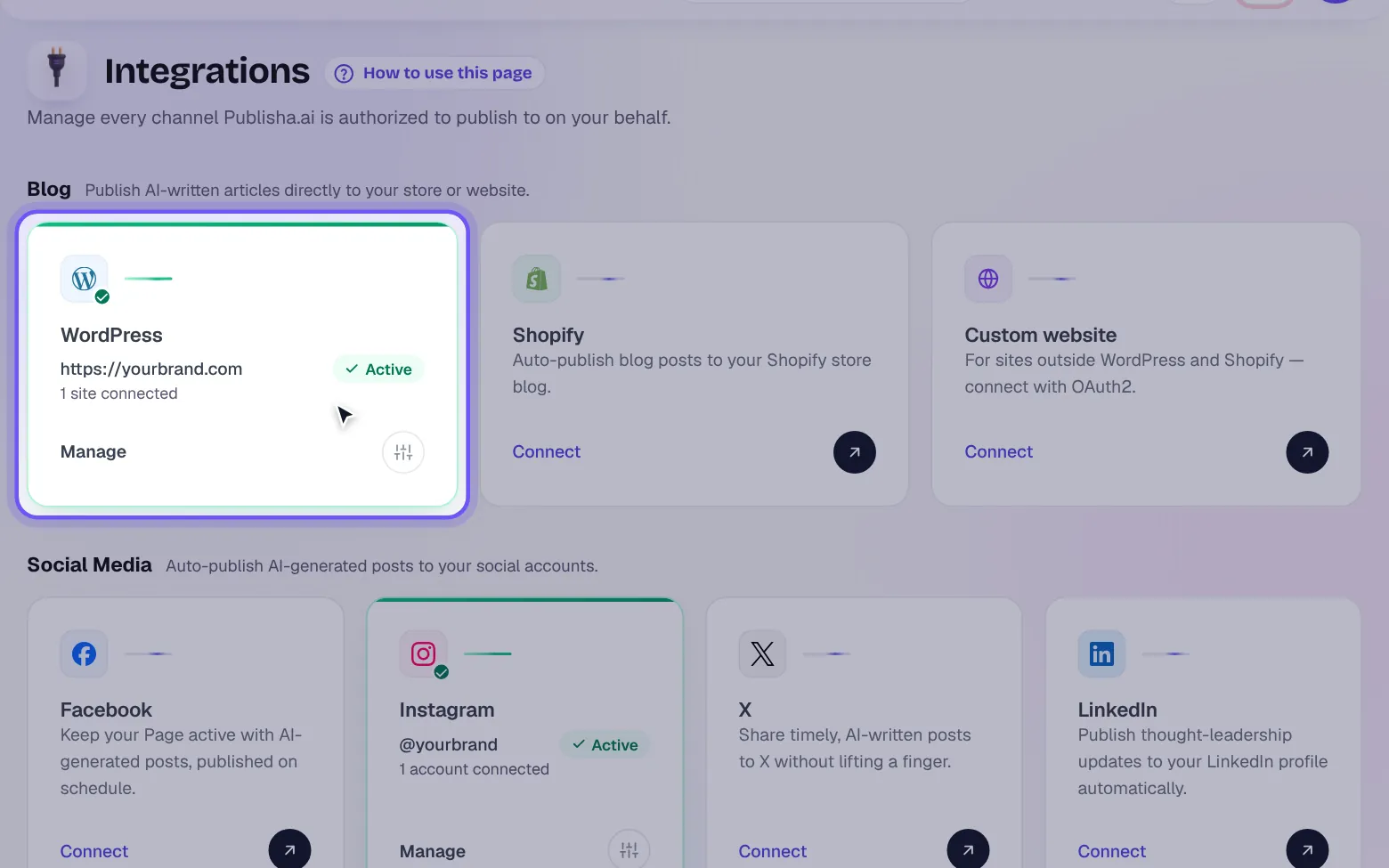
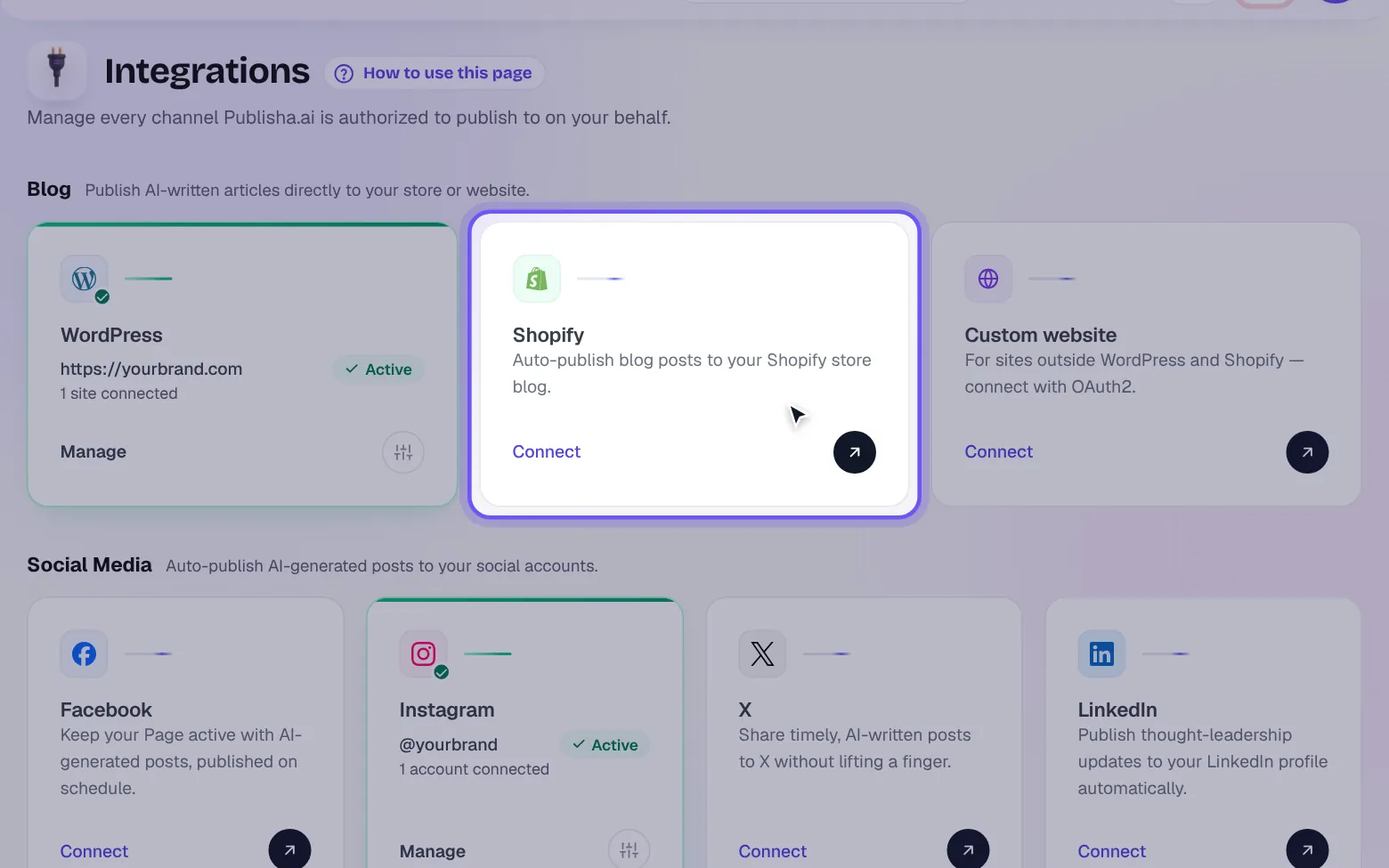
All channels are on one page: Blog at the top (WordPress, Shopify, custom website), Social Media below it. A green tick means a channel is connected and working.
-
Connect WordPress in one click
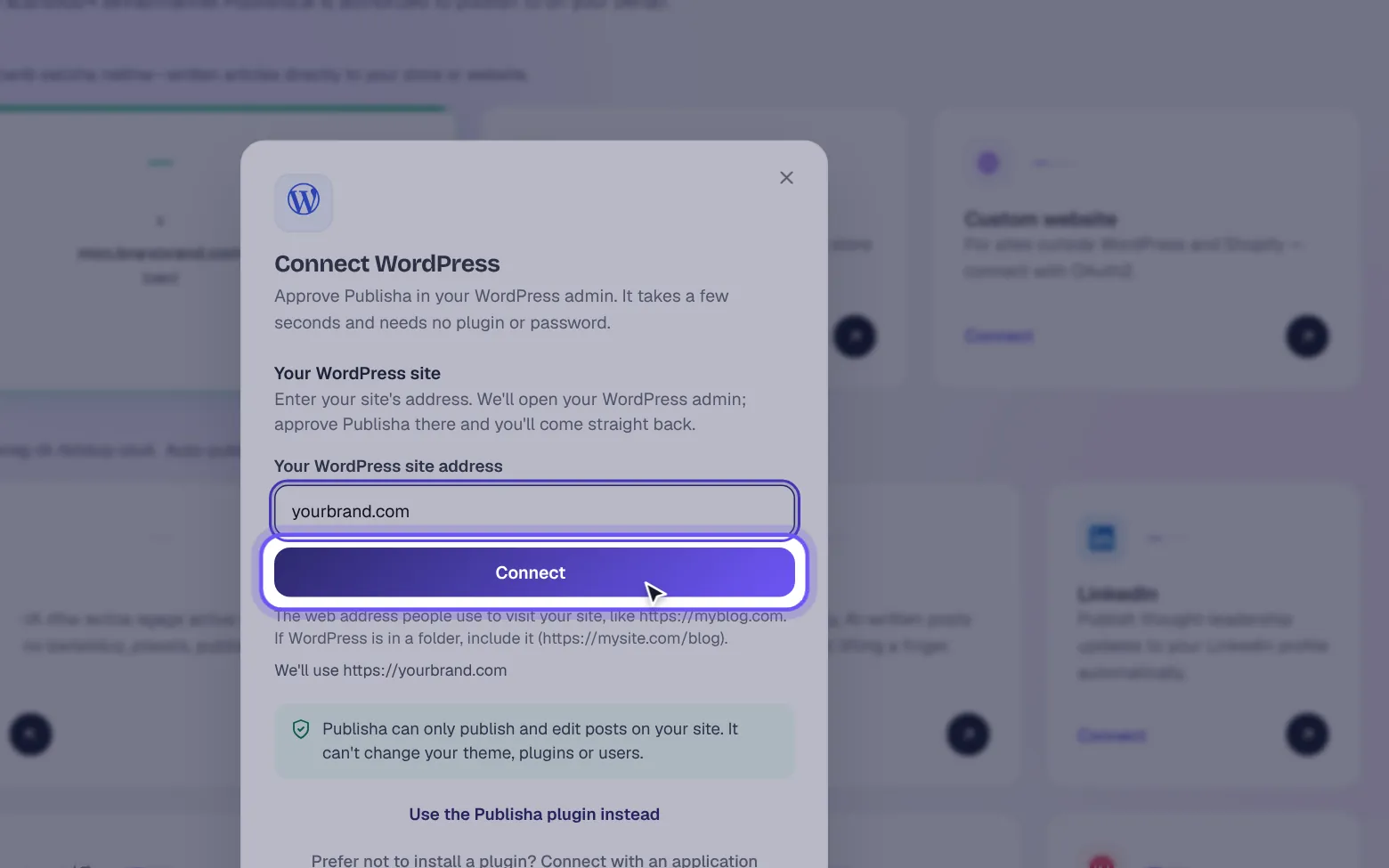
Click WordPress, type your site’s address and click Connect. Your WordPress admin opens; click “Yes, I approve this connection” and you come straight back, connected. No plugin to install and no password to copy.
If your site has Application Passwords switched off (some security plugins do this), Publisha shows the plugin steps instead, with your address already filled in.
-
Or connect Shopify or your own website
Shopify: click Connect and pick your store on Shopify. Posts go to your store’s blog.
Custom website: for sites built on something else, connect with OAuth2. Your developer installs the small Publisha companion once.
-
Connect your social accounts
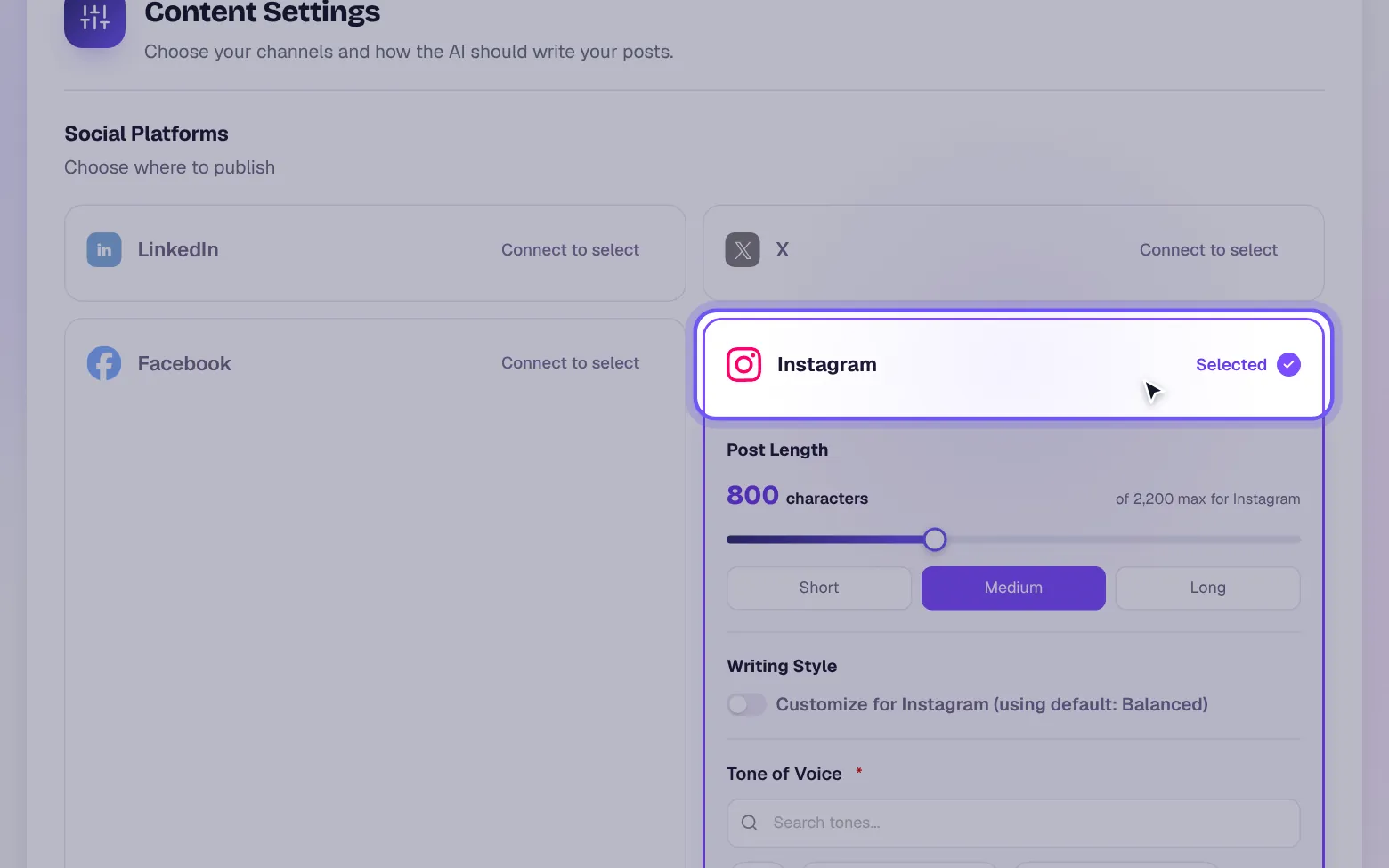
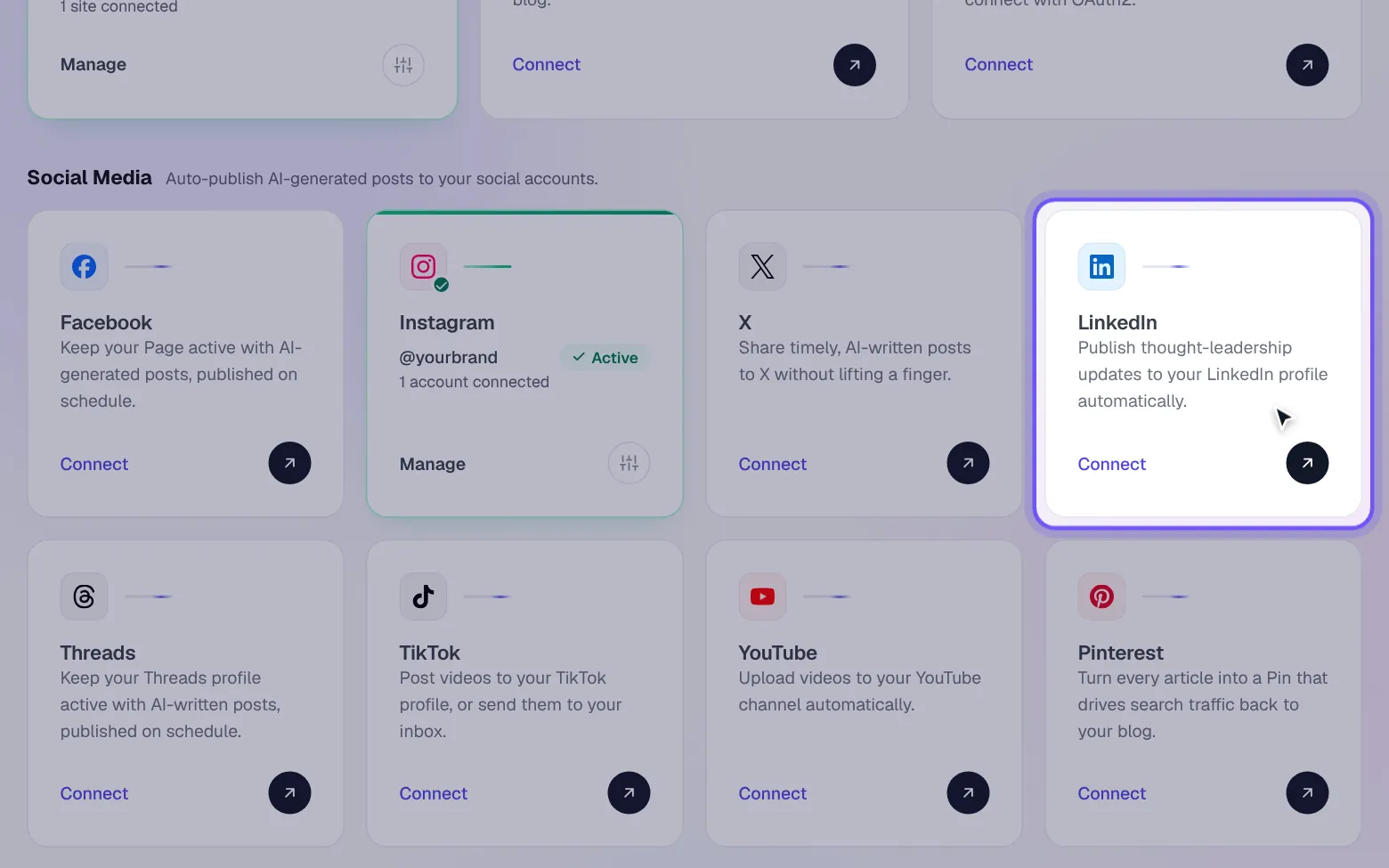
Click a network (Facebook, Instagram, X, LinkedIn, Threads, TikTok, YouTube or Pinterest), sign in on its own page and approve. Facebook and Instagram need a business or creator account linked to a Facebook Page.
-
Check your connected accounts
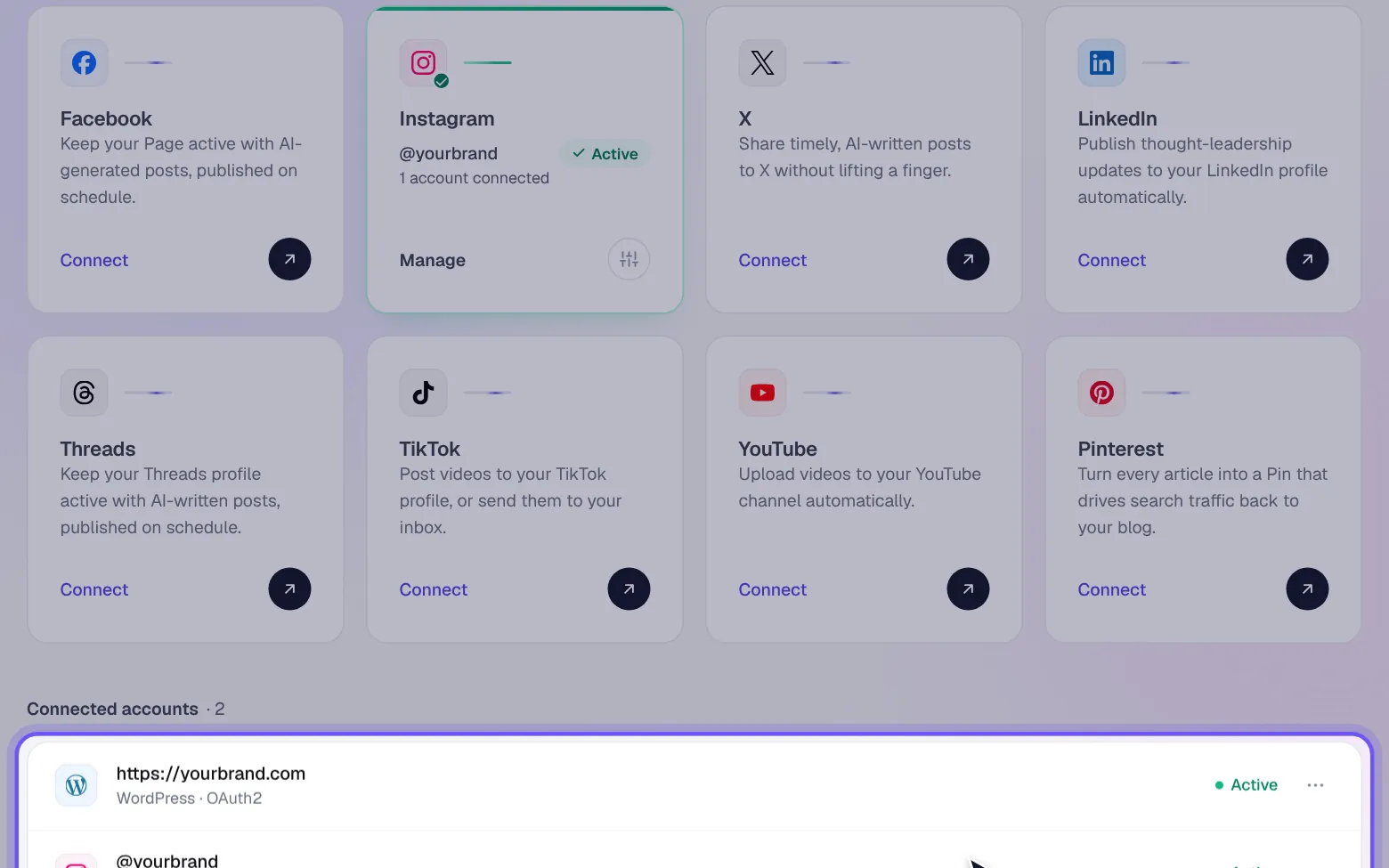
The list at the bottom shows every connection and its state. When a platform asks you to sign in again, the card says “Needs attention”: click Reconnect and approve once more.
Questions
Do I need to install a WordPress plugin?
No. One-click connect uses WordPress’s built-in Application Passwords (WordPress 5.6 or newer). The plugin is only needed to write the SEO title and description into Yoast SEO or Rank Math.
Is my password stored?
No. WordPress, Shopify and the social networks give Publisha a separate access key that you can revoke at any time from their own settings or by clicking Disconnect.
Why does a channel say “Needs attention”?
The platform ended the access, usually after a password change or after a set number of days. Click Reconnect and approve again; scheduled posts continue.