
Automate your content
Create an automated blog campaign
Set up a blog campaign once: Publisha writes SEO articles from your keywords and publishes them to your site on your schedule.
In short
A campaign is Publisha’s automation. You decide once what to write about, how it should sound and how often to publish; Publisha then writes every article, adds images, fills the SEO fields and publishes it to your site at the right time, week after week.
The wizard has six steps. You can go back at any time, and the last step shows everything before anything is published.
-
Step 1 · Content settings
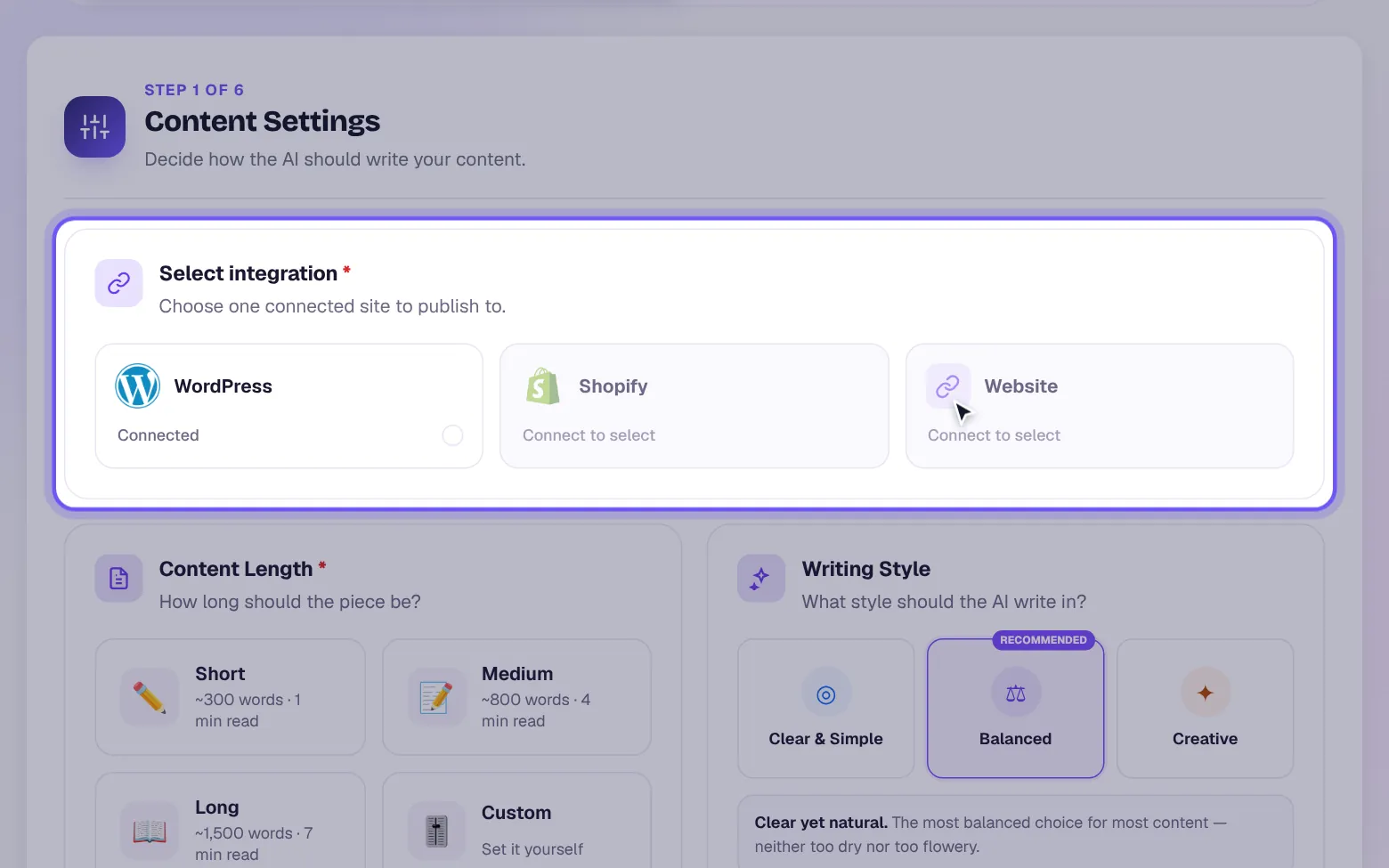
Choose the site to publish to, then the length (Short ~300 words, Medium ~800, Long ~1,500 or your own), the writing style and up to five tones of voice.
Below, decide how tags are made (automatically or your own) and pick categories, which come straight from your site.
-
Step 2 · Schedule
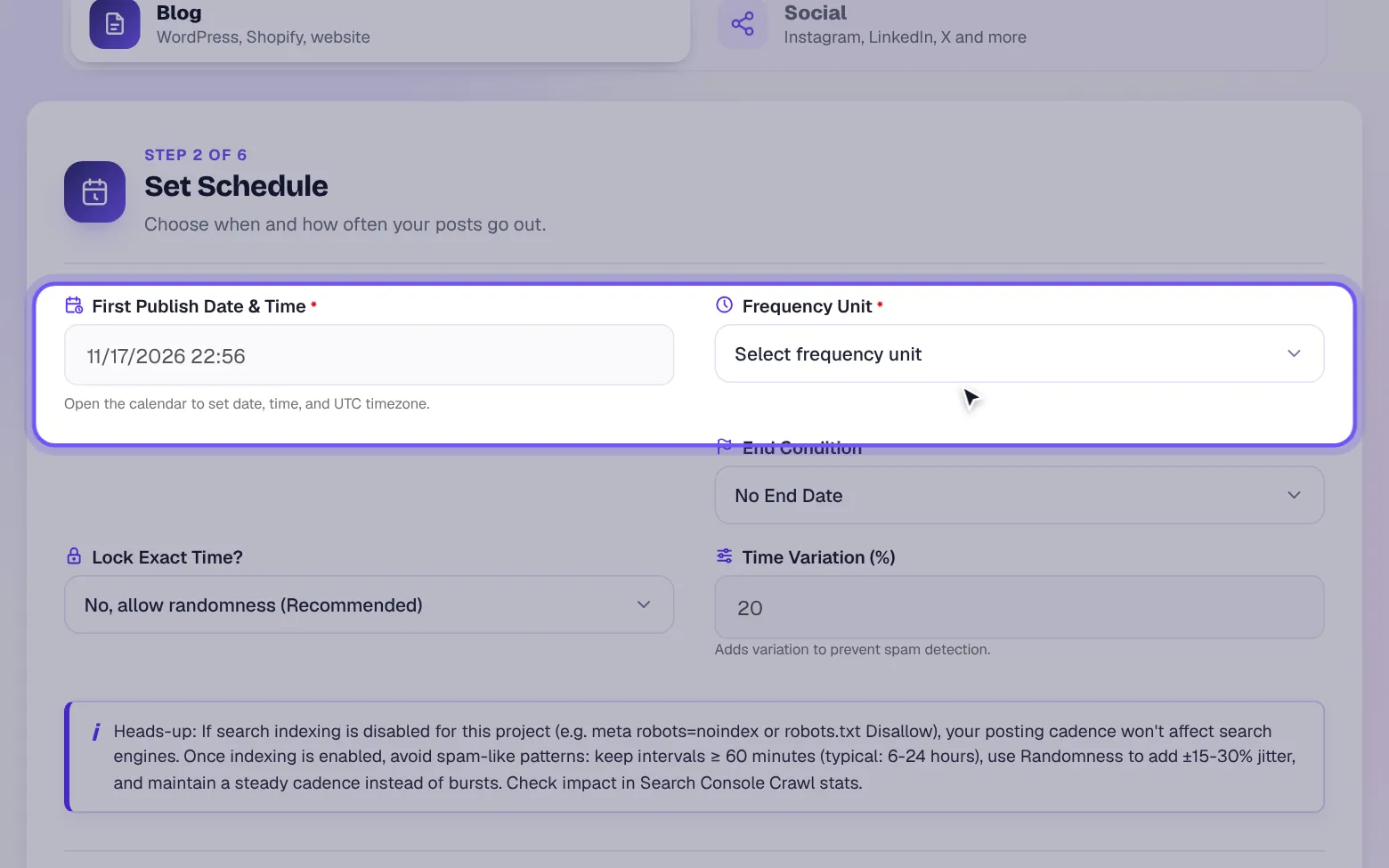
Set the first publish date and time, how often to publish (for example every day or twice a week) and when to stop: never, after a number of posts or on a date.
Leave “allow randomness” on: posts then go out a little earlier or later each time, which looks natural to search engines. Keep at least an hour between posts.
-
Step 3 · Prompt
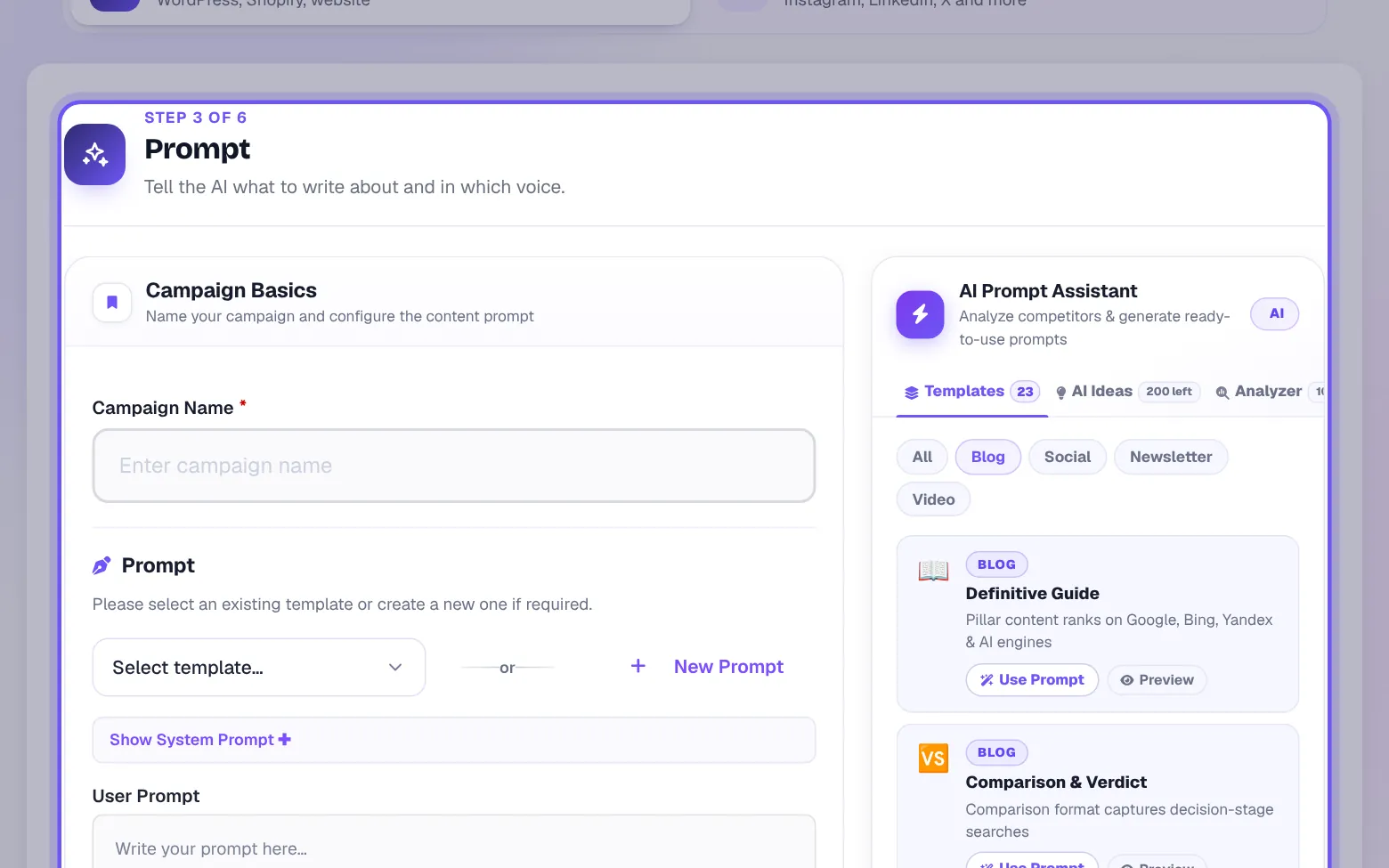
Name the campaign and choose a prompt: the instruction the AI follows for every article. Start from a template or write your own. {keyword} is replaced by each keyword from the next step.
-
Step 4 · Keywords
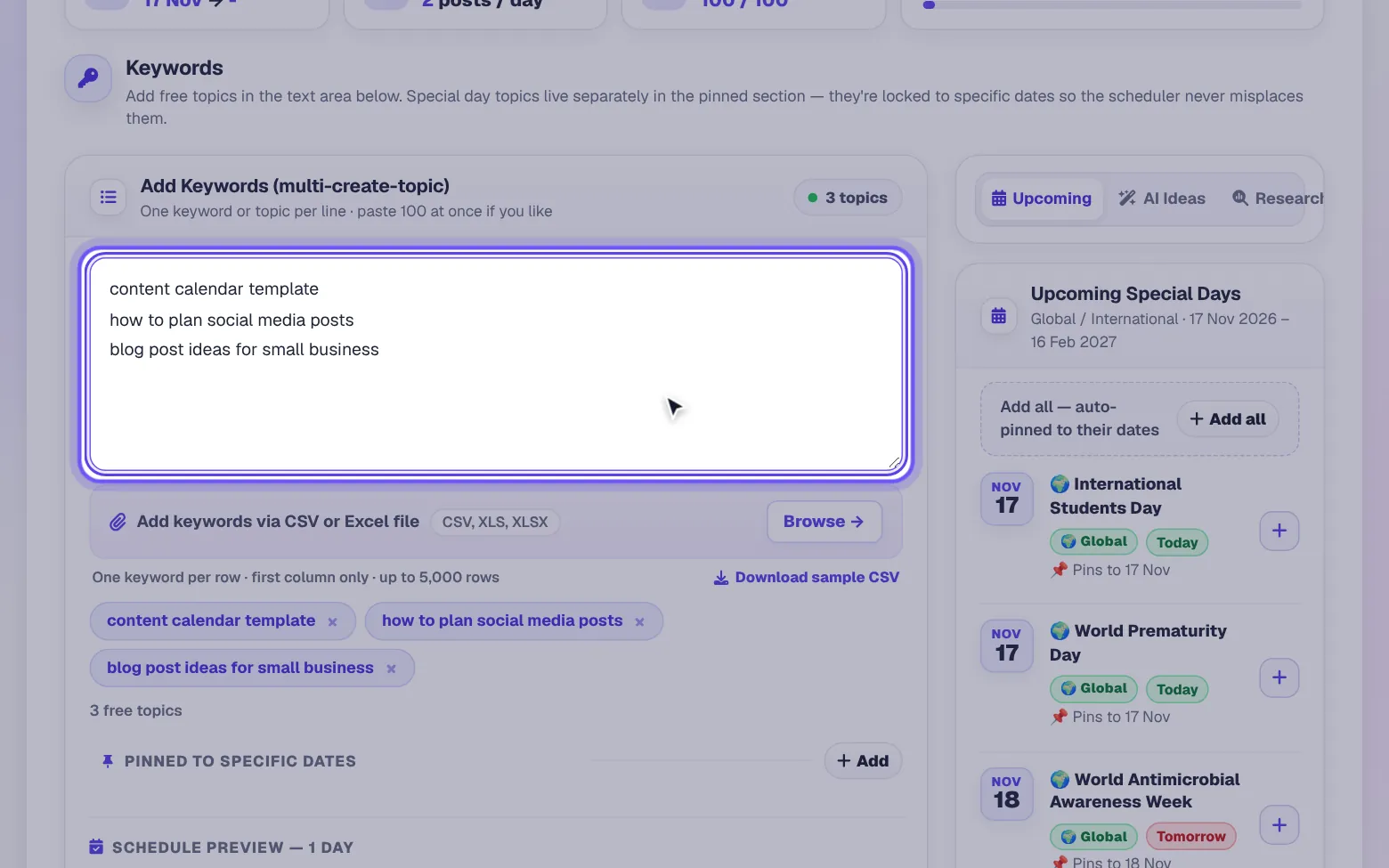
Add the topics, one per article: type or paste them, upload a CSV or Excel file, or get ideas from a seed keyword, trending topics, AI Ideas or Research.
Special days (holidays, awareness days in your markets) can be pinned to their date so the article goes out exactly then. The counter shows how many posts your plan leaves.
Publisha checks every topic against your other campaigns, the pages on your website and your Google rankings. A topic that would compete with content you already have is marked, for example “#6 on Google”: remove it, or keep it and Publisha writes a clearly different angle that links to your existing page.
-
Step 5 · Media
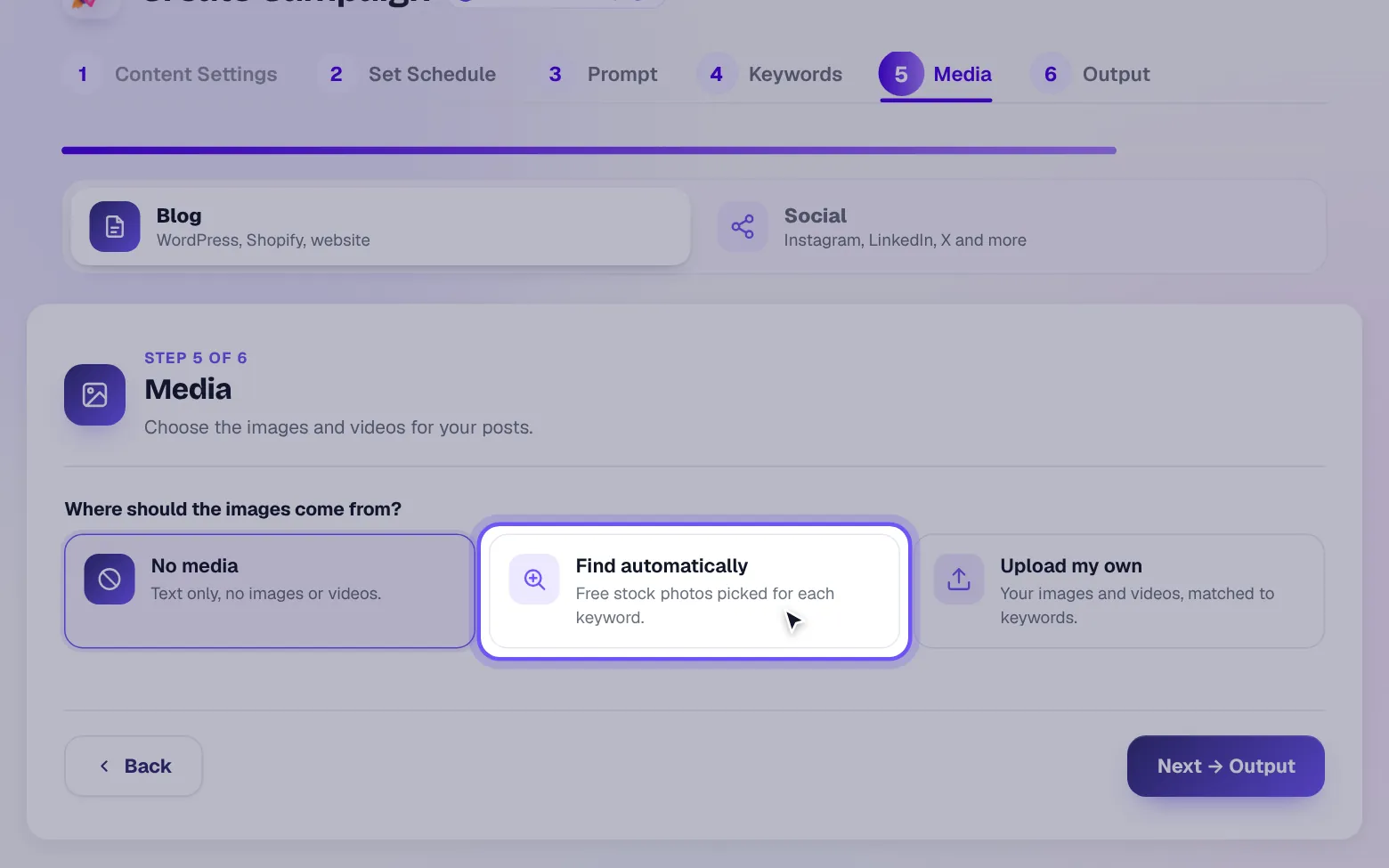
Choose where images come from: none, free stock photos found for each keyword, or your own images and videos, which Publisha matches to the keywords.
-
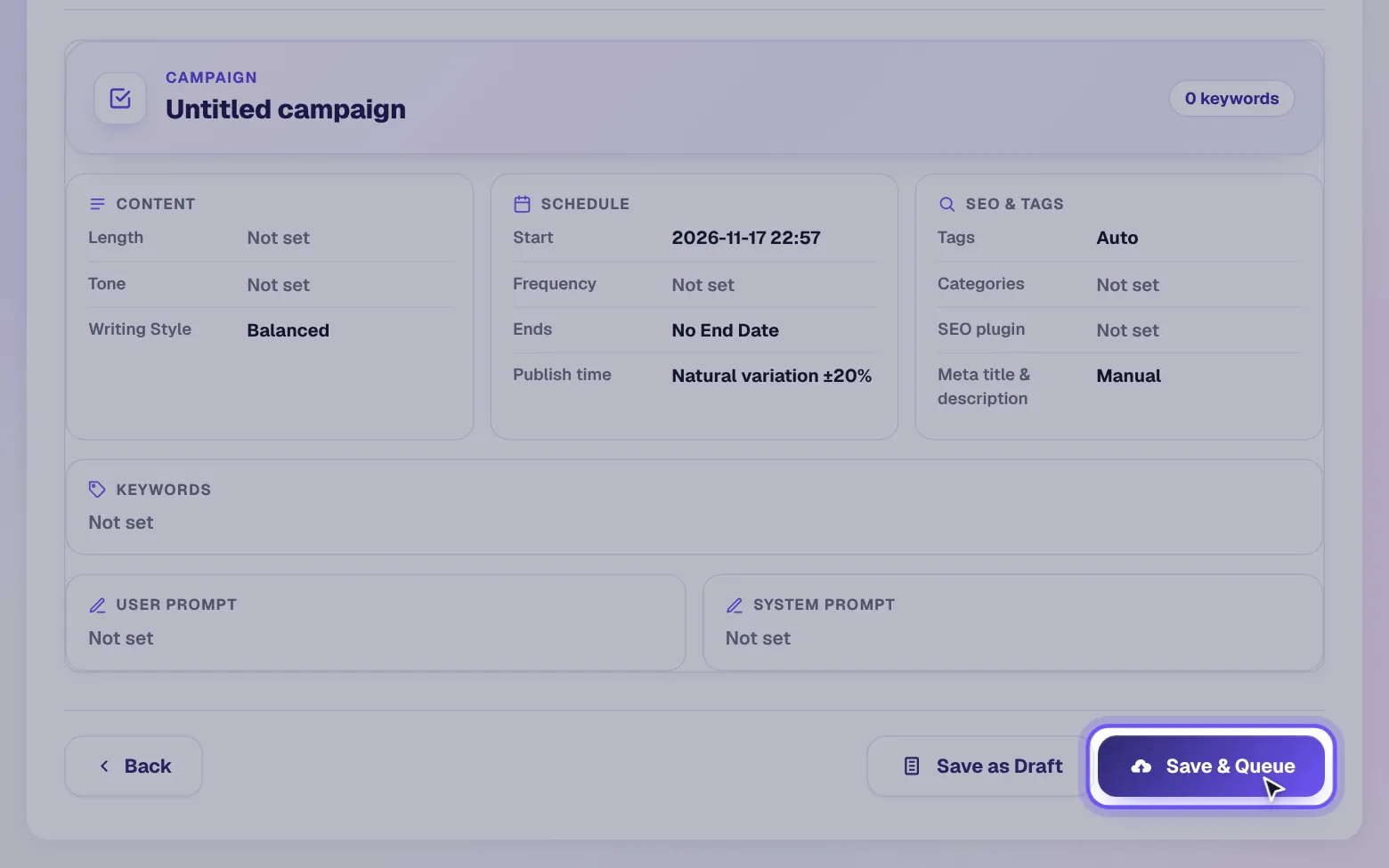
Step 6 · Review and start
Check the summary. Save & Queue starts the campaign: Publisha begins writing the articles and gives each one its publish date from your schedule. Save as Draft keeps the campaign without starting it: nothing is written yet, and you start it later from All Campaigns. The articles themselves are reviewed in All Posts: an article waiting for your approval shows there as Draft or In review, and you publish or schedule it from there.
Questions
When are the articles written?
Soon after you start the campaign. Publisha writes them one after another, as long as your plan has outputs left, and schedules each for its own date. Until then they wait as Scheduled.
Can I check articles before they go live?
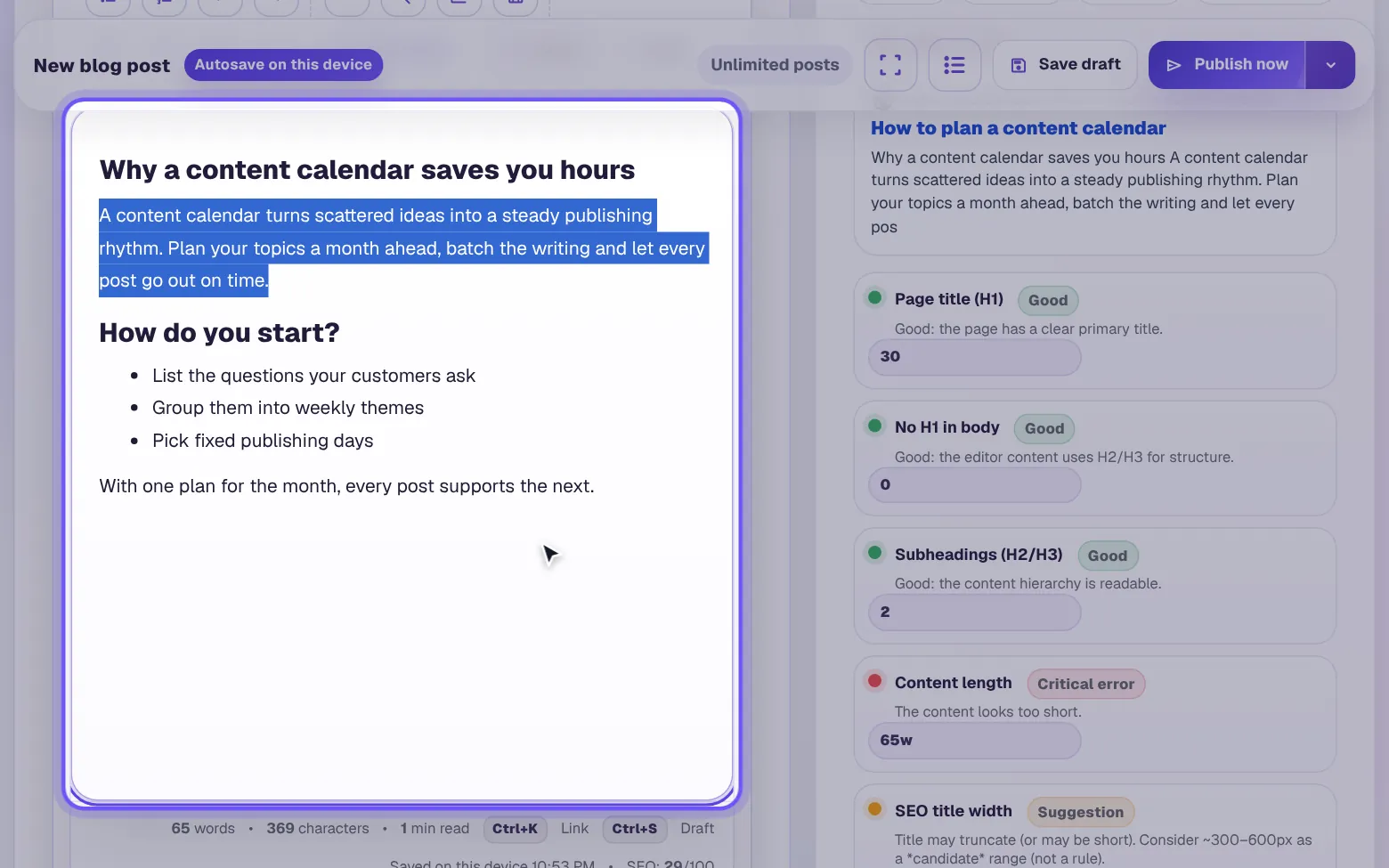
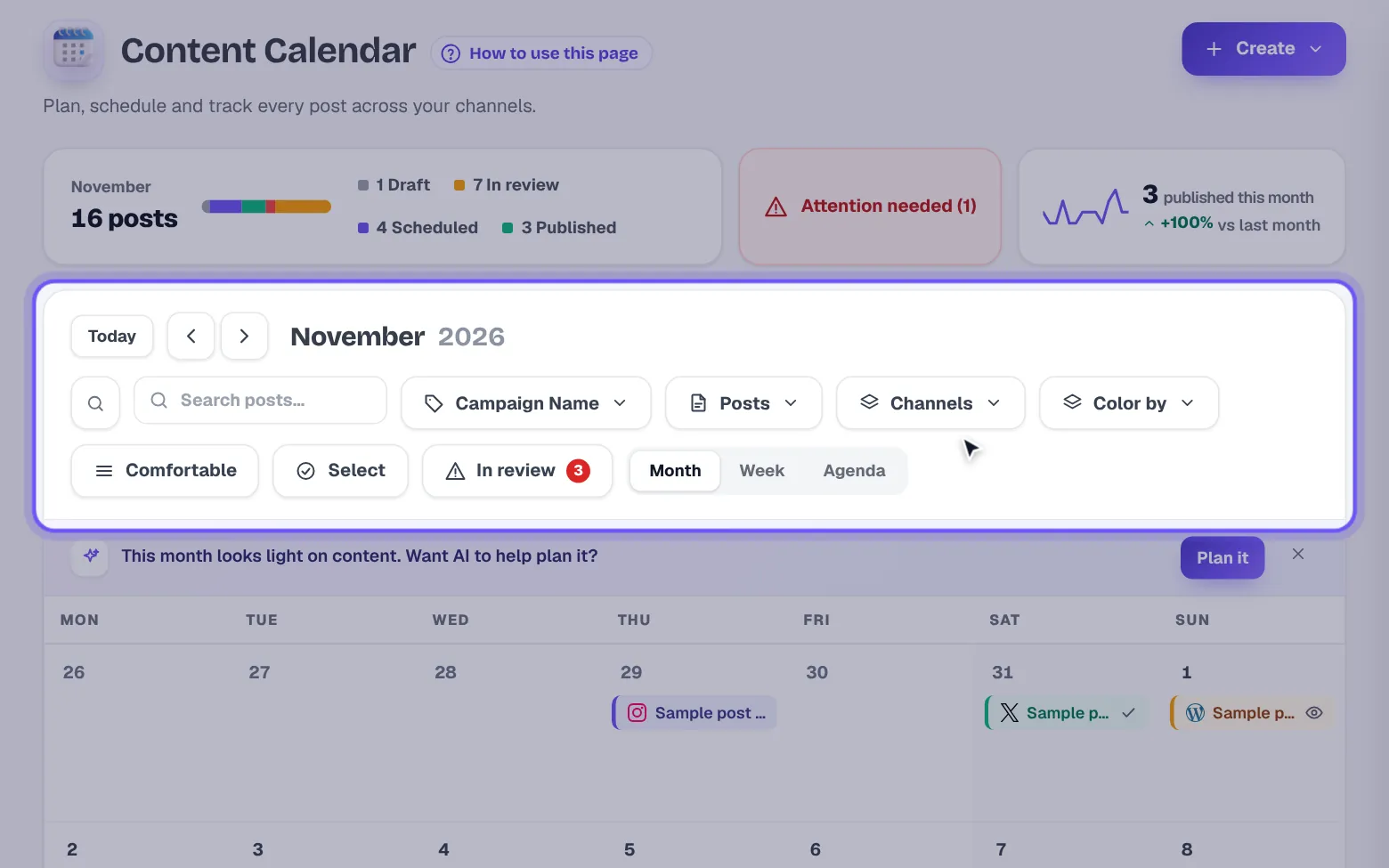
Yes. Every written article is in the Content Calendar and in All Posts before its date: open it to read, edit, reschedule or unschedule it. Posts marked “In review” wait for you to click Approve.
Can I stop or change a campaign?
Yes. In Campaigns → All Campaigns use Edit, Stop or Resume. Clone copies a campaign as a starting point for the next one.